
BobSim App
The BobSim app is the guided path through BobSim: set up a vehicle, generate its Modelica stack, run a standard simulation, and collect the report. It drives the same repository code as the CLI targets, so nothing you do here is app-only.
The whole app is three tabs, used in order:
Setup → Simulation → ArchiveInstall and launch
Desktop release — download the BobSim asset for your OS from the latest GitHub Release, extract, and run BobSim. It bundles the Python backend and the UI. It does not bundle OpenModelica or prebuilt simulation executables — see OpenModelica toolchain.
Source checkout — from the BobSim repository root:
make docker-build
make app
Then open http://127.0.0.1:8765. The app runs in Docker and uses the image's OpenModelica, so it needs no local Python or OpenModelica. To pick a different port:
make app APP_PORT=8766To run the app on your machine instead, use make app RUN=. That needs a Python environment with requirements.txt installed, and a local OpenModelica to simulate.
Setup
Setup opens with a vehicle chooser. Pick one of four sources:
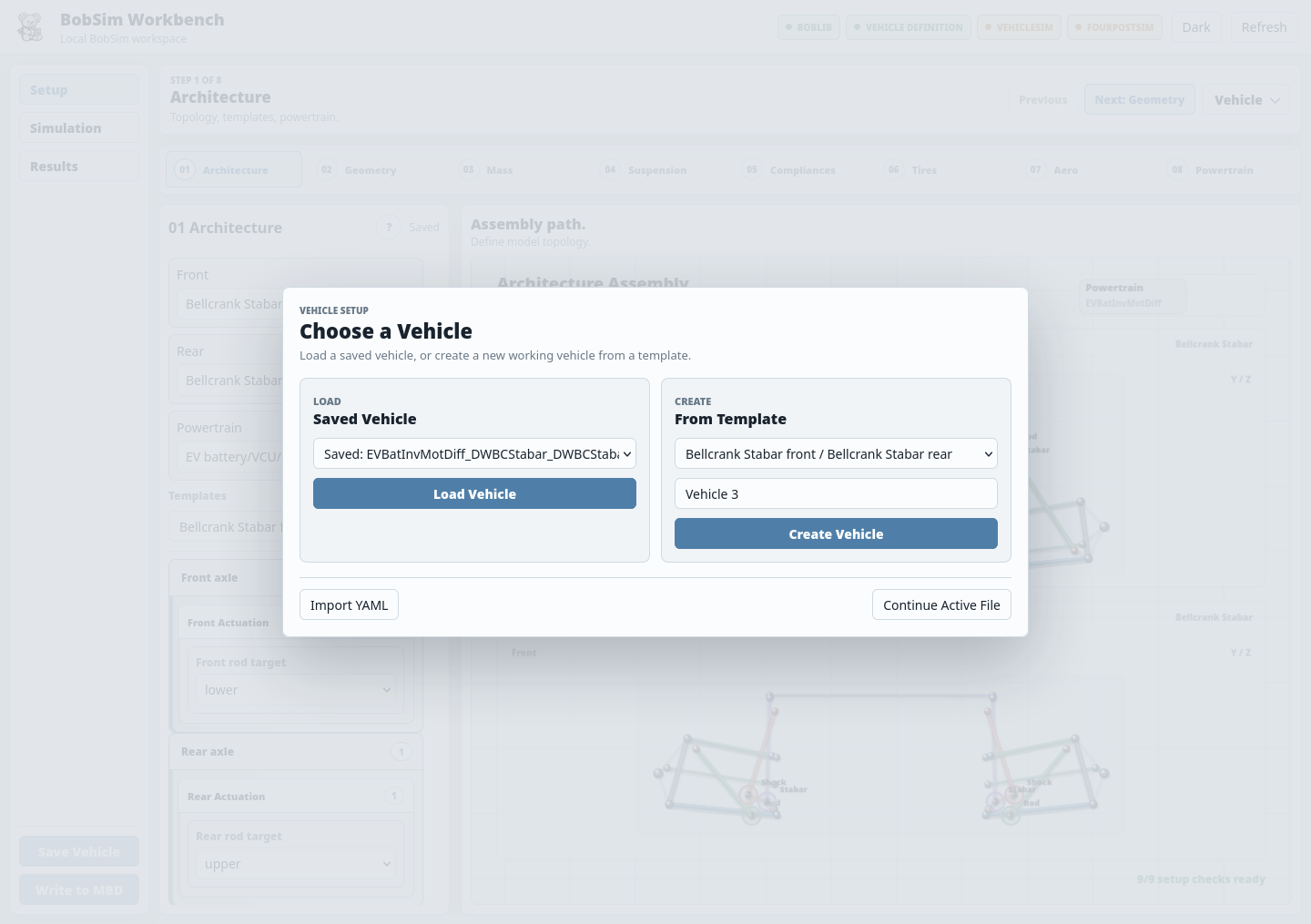
| Option | Source |
|---|---|
Load Vehicle | A vehicle you saved in the app (_5_App/user_data/config/vehicles/) |
Create Vehicle | An architecture template from _0_Utils/vehicle_templates/ |
Import YAML | Any .yml / .yaml vehicle file on disk |
Continue Active File | Whatever vehicle is currently active |
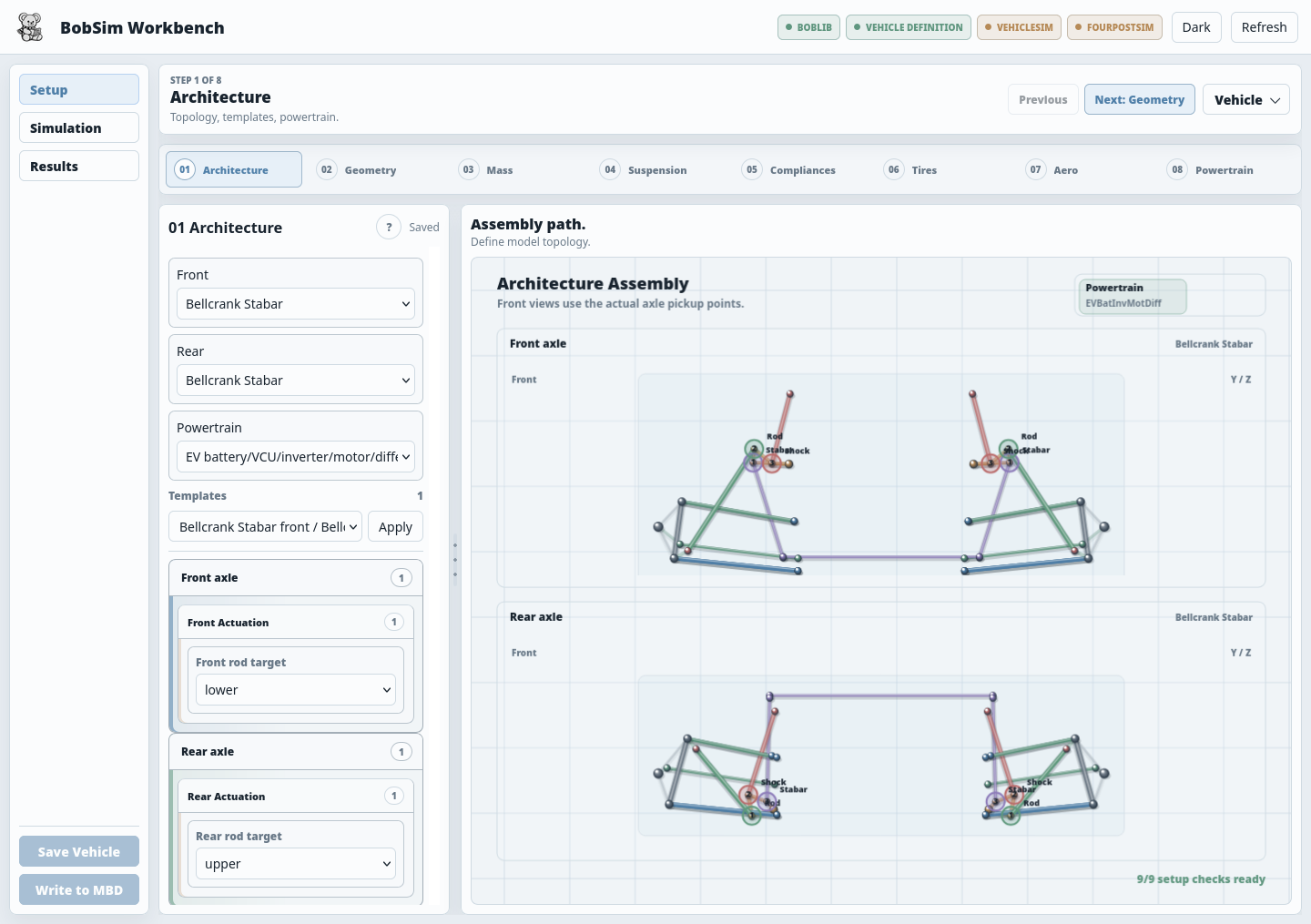
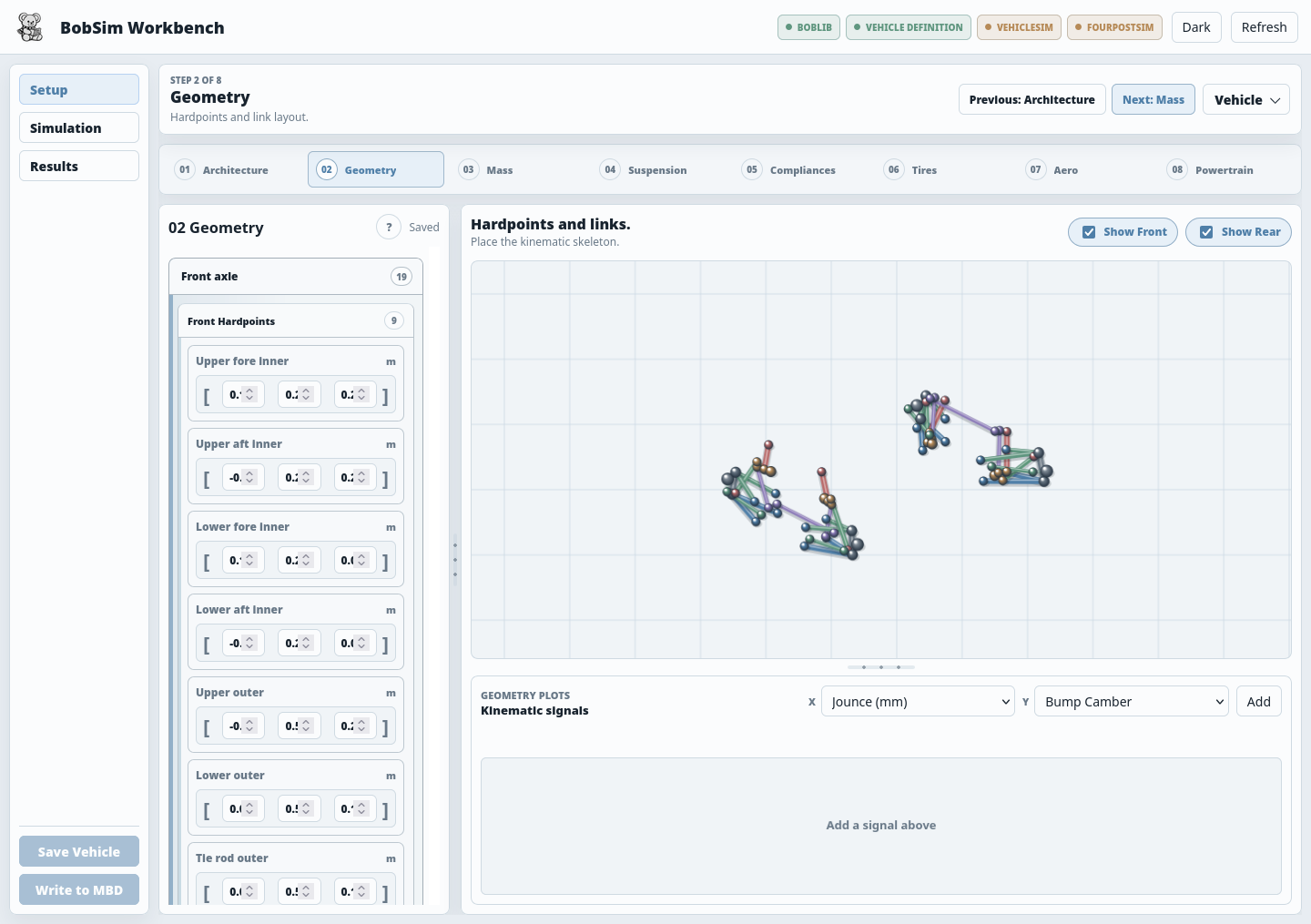
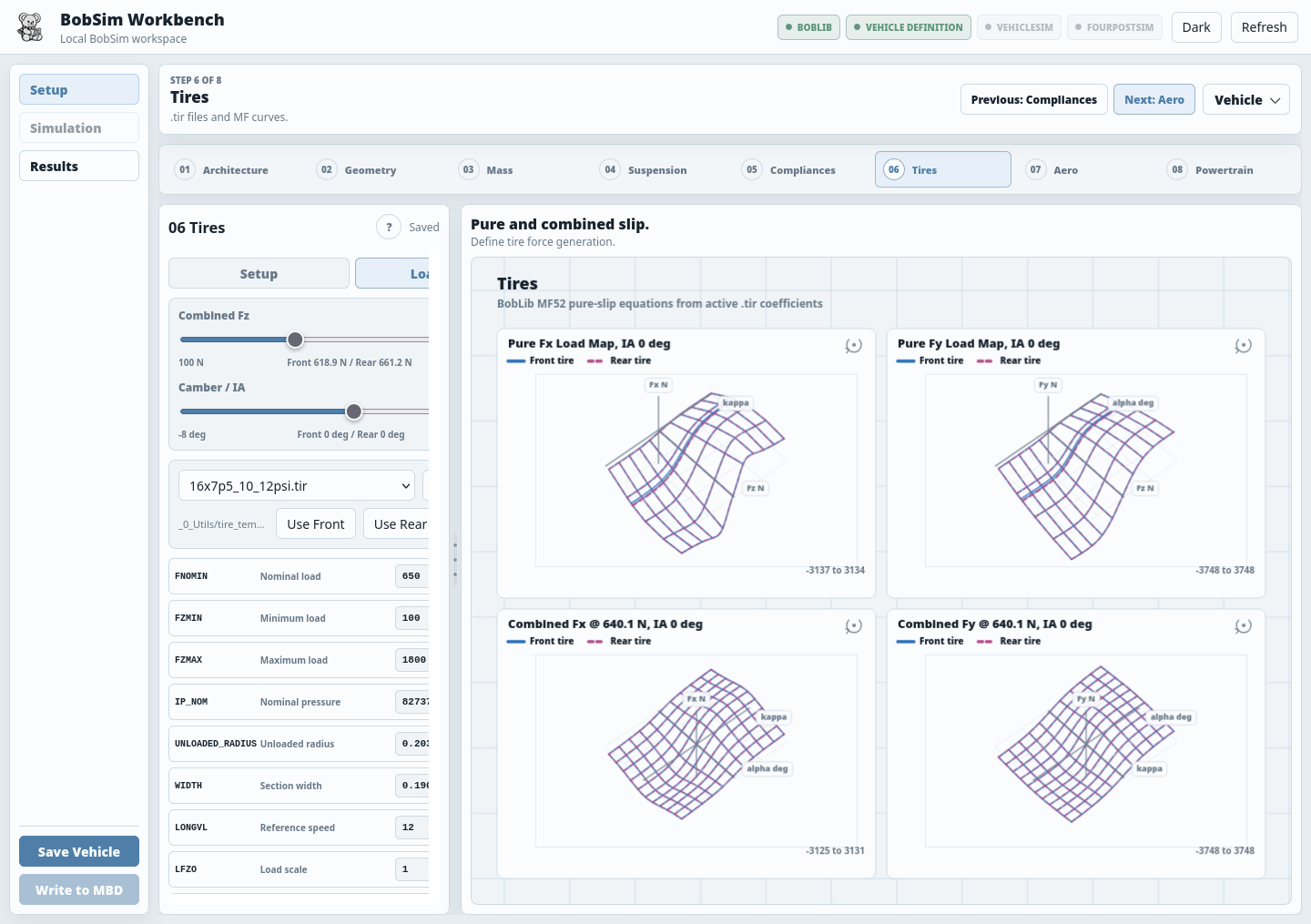
Once a vehicle is open, work left to right through the eight steps:
Architecture → Geometry → Mass → Suspension → Compliances → Tires → Aero → PowertrainThe left pane edits the active step's fields; the right pane previews the result live — hardpoints, suspension linkage motion, mass properties, tire curves, aero maps, powertrain layout. The ? button opens a short reference for the step you are on.
Before you can simulate
- Click Save Vehicle.
- Click Write to MBD — this generates the Modelica stack the workflows build.
- Check the top status strip: the vehicle definition must read as current.
Simulation stays locked until both of those are done and the OpenModelica toolchain is verified. If Write to MBD is greyed out, hover it — the tooltip gives the reason.
Simulation
Simulation is the StandardSim launch surface. Each card is one workflow:
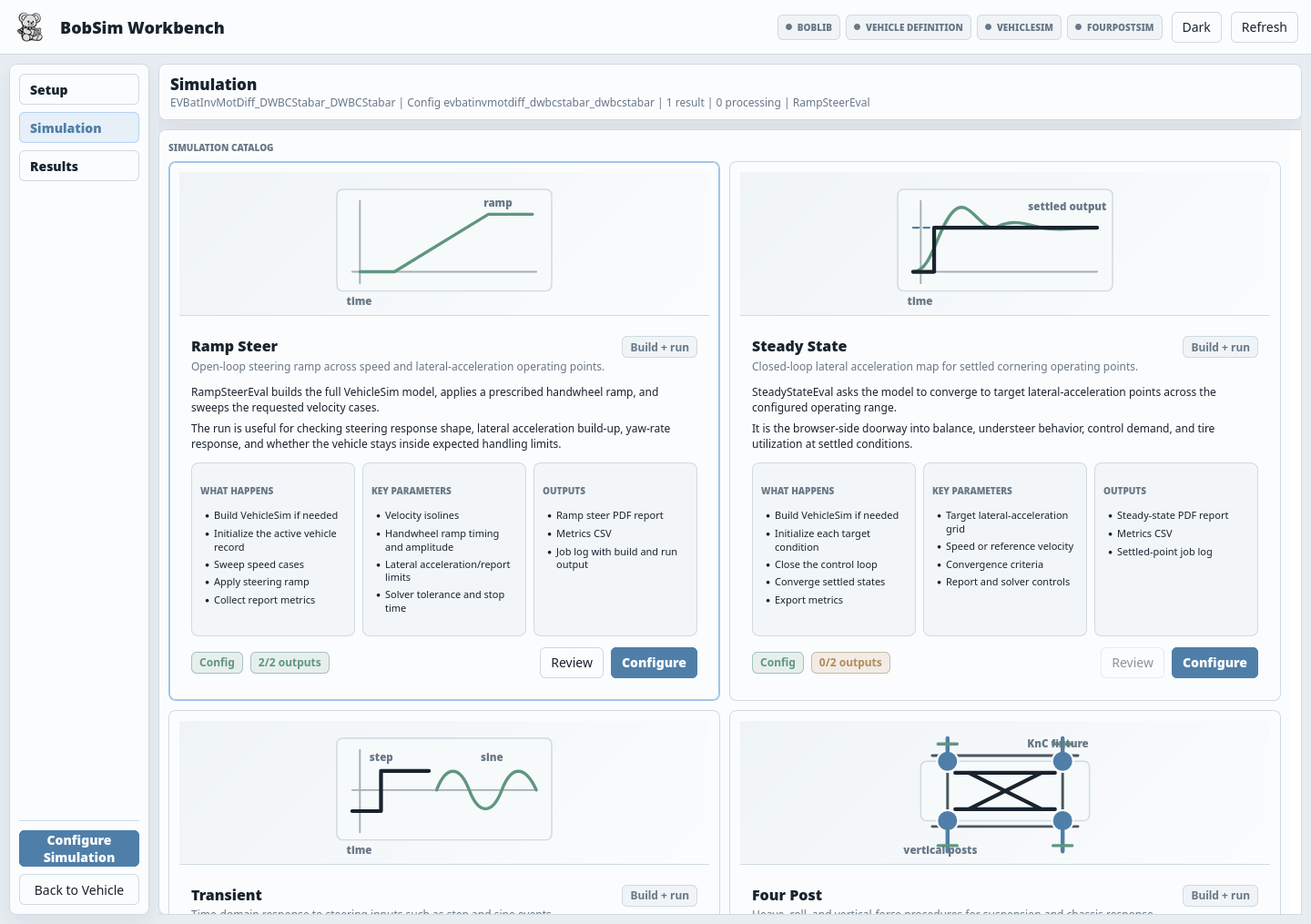
| Workflow | What it runs |
|---|---|
Ramp Steer | RampSteerEval, using the active VehicleSim definition |
Steady State | SteadyStateEval, settled target lateral-acceleration cases |
Transient | TransientEval, step and sine steering cases |
Four Post | FourPostEval, heave, roll, and vertical-force procedures |
Opening a card gives you a configuration modal with two tabs:
| Control | Use |
|---|---|
Configure tab | Edit the workflow's run fields |
| Run config picker | Load a saved or default run config |
Save Config | Store the current fields as a reusable app run config |
Apply Edits | Commit in-browser changes before running |
Build + Run / Run | Launch — builds the Modelica executable first if needed |
Run Log tab | Live job output, plus recent jobs |
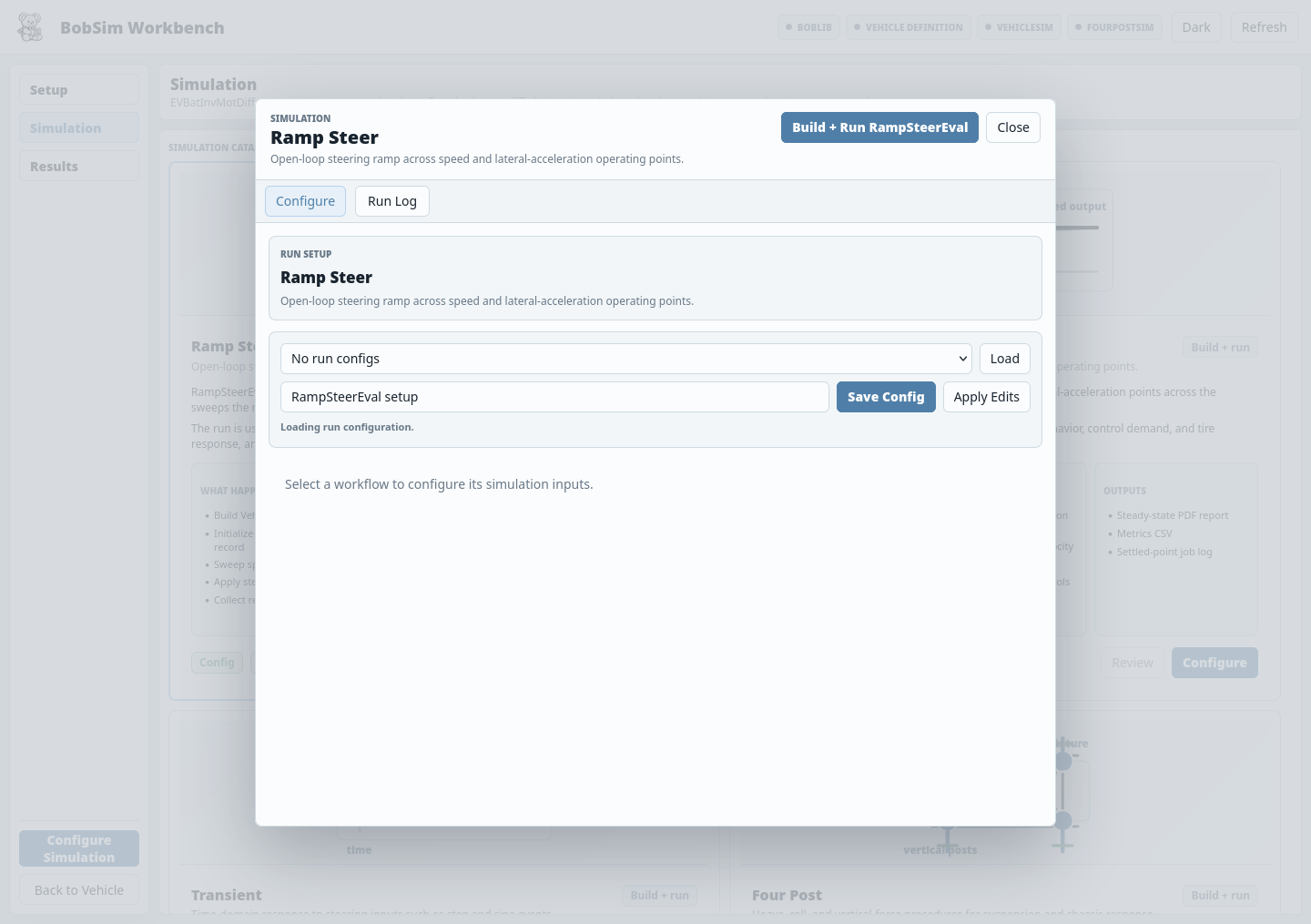
The run log is the first place to look when anything fails — OpenModelica, dependencies, and simulation errors all surface there.
Two config fields are worth knowing about. Ramp Steer exposes a nonlinear steering-gain-loss cutoff that stops open-loop ramps before the response goes strongly nonlinear. Steady State exposes velocity-specific lateral-acceleration caps and the closed-loop settle tolerances; the defaults are deliberately conservative so the alpha run grid completes cleanly, and you can raise or remove them for exploratory runs.
Full field reference: Configuration.
OpenModelica toolchain
Simulation unlocks only after BobSim verifies an OpenModelica install. In Docker (make app) the app finds the image's /usr/bin/omc and /root/.openmodelica/libraries on its own, and there is nothing to set.
The desktop release and make app RUN= use a local OpenModelica. The app auto-detects common locations and shows a selector when it cannot. You need two things:
| Field | What to point it at |
|---|---|
omc executable | The OpenModelica compiler, or its bin directory |
| Library directory | The directory holding Modelica, VehicleInterfaces, etc. |
| Platform | Typical library directory |
|---|---|
| Windows | %APPDATA%\.openmodelica\libraries |
| macOS | ~/.openmodelica/libraries |
| Linux | ~/.openmodelica/libraries |
BobSim runs omc --version and checks the required libraries are present before unlocking Simulation. An OpenModelica home path is not needed — Linux system installs in particular usually work with just these two fields.
Archive
Every successful Simulation job automatically produces a local archive package for that vehicle and workflow. Archive is where you download them.
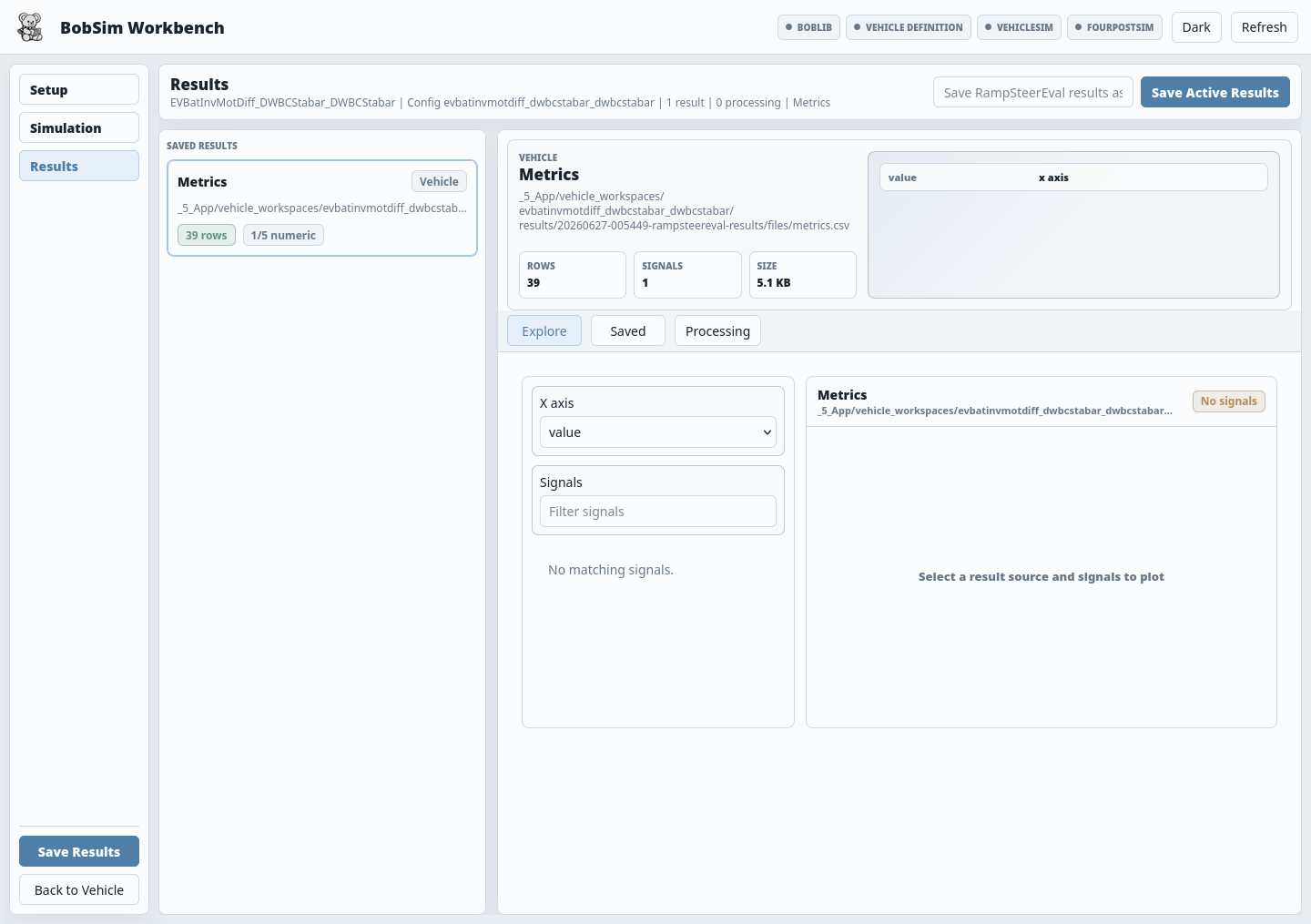
Each package contains the generated PDF report, the metrics CSV, a per-run signal archive zip, a run description manifest, and snapshots of the vehicle and run config. Delete on a card removes both the saved package and its mirrored copy in the vehicle workspace.
The app deliberately focuses on downloadable artifacts rather than in-app plotting. For what is inside each file and for the older CLI output trees, see Archive.
Where the app keeps its files
Everything the app writes lives under one runtime root, separate from the code.
In a source checkout that root is _5_App/user_data/:
| Path | Contents |
|---|---|
user_data/config/app/ | App settings. The OpenModelica selection is in openmodelica.docker.json for the app in Docker and openmodelica.json otherwise. |
user_data/config/vehicles/ | Vehicles you saved from Setup |
user_data/config/simulations/ | Run configs you saved from a workflow modal |
user_data/results/saved/ | Archive packages |
user_data/workspaces/vehicles/ | Per-vehicle generated configs and results |
user_data/cache/modelica/ | Cached Modelica builds |
In a desktop release it is a per-user directory instead:
| Platform | Default runtime root |
|---|---|
| Windows | %LOCALAPPDATA%\BobDyn\BobSim |
| macOS | ~/Library/Application Support/BobDyn/BobSim |
| Linux | ${XDG_DATA_HOME:-~/.local/share}/BobDyn/BobSim |
Set BOBSIM_HOME to override it. (BOBDYN_HOME is still honoured for older local builds.) On each launch the desktop app refreshes app-owned resources from the bundle — BobLib, report helpers, build scripts, default run configs — while leaving your saved vehicles, workspaces, results, configs, and imported templates untouched.
Read-only app assets stay in the repository: _5_App/static/ is the UI, _5_App/app.py is the local server, _5_App/sim_configs/_defaults/ holds the stock run configs.
Using the CLI instead
The app is a surface over repository code, not a replacement for it. When you want automation, run the same workflows directly:
make standard-eval-ramp-steer
make standard-eval-steady-state
make standard-eval-transient
make standard-eval-four-post
Troubleshooting the app
| Symptom | Fix |
|---|---|
| Simulation tab is disabled | Save the vehicle, click Write to MBD, and verify the OpenModelica toolchain. All three are required. |
Write to MBD is disabled | Hover it for the reason — usually a missing BobLib submodule, unsaved edits, or no active vehicle. |
No module named yaml | Only with make app RUN=: python -m pip install -r requirements.txt in the environment that launches the app. |
omc: command not found | Only outside Docker: set the omc executable and library directory in the toolchain selector, or use make app, which runs in Docker. |
| The page does not load | Open http://127.0.0.1:8765, not the 0.0.0.0 address the container prints. If the port is taken, use make app APP_PORT=8766. |
| Nothing appears in Archive | Open Run Log — a failed build or run leaves the message there. Then check the workflow's report and metrics output paths match what the active config writes. |
See also
- Configuration — every field in the run configs the app edits
- Archive — what each output file contains, and the CLI output trees
- StandardSim — the workflows behind the four cards
- BobDyn/BobSim overview — how the app fits the wider repository