
BobDyn/BobSim Use Guide
This guide explains how to use BobDyn/BobSim after the environment is set up. For normal work, launch the BobSim app first and use the CLI when you need scripted, Docker, or CI-style workflows.
Starting point
In this guide, the BobDyn/BobSim root means the repository directory created by the BobSim clone step. Start there before running commands or editing workflow files.
Choose the right layer
Use BobDyn/BobSim for simulation workflows: setup, cases, sweeps, metrics, plots, reports, envelopes, sensitivities, and result files.
Use BobDyn/BobLib for the low-level Modelica model layer: suspension assemblies, Modelica records, tire models, direct OpenModelica debugging, and OMEdit diagram inspection.
Daily App Workflow
Launch the released desktop app by running BobSim.
From a source checkout, launch the app in Docker from the BobSim root:
make appOpen:
http://127.0.0.1:8765The normal BobSim loop is:
- Choose or create a vehicle in
Setup. - Work through Architecture, Geometry, Mass, Suspension, Compliances, Tires, Aero, and Powertrain.
- Click
Save Vehicle. - Click
Write to MBD. - Outside Docker only, verify the OpenModelica toolchain if Simulation asks for it.
- Open
Simulation, choose a workflow, configure it, thenBuild + Run. - Open
Archiveto review the generated PDF, metrics, and signal archive.
The app keeps the public workflow visible: vehicle setup on the left rail, simulation launch in the middle, and result review after the run.
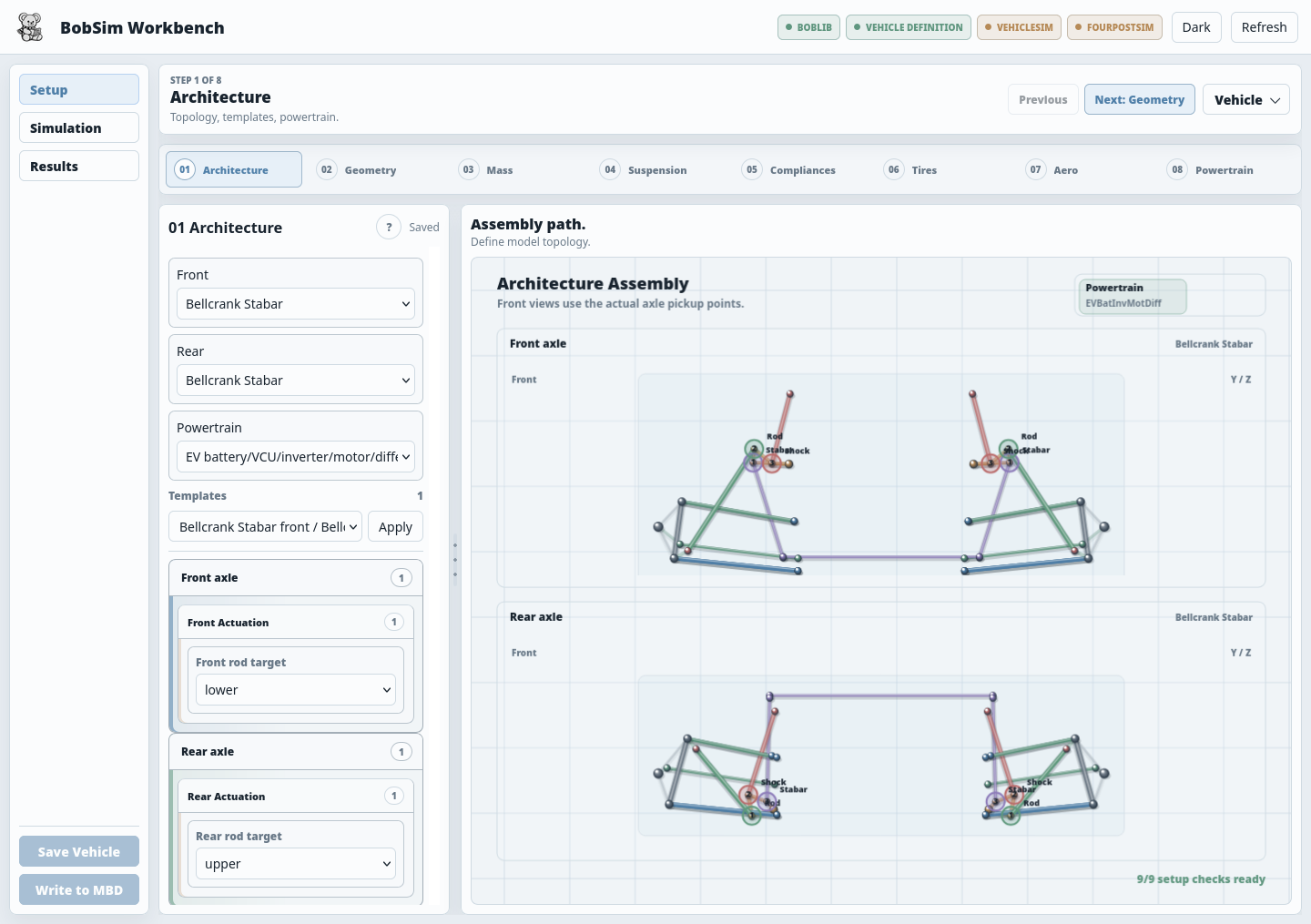
Setup View
Use Setup to manage the active vehicle.
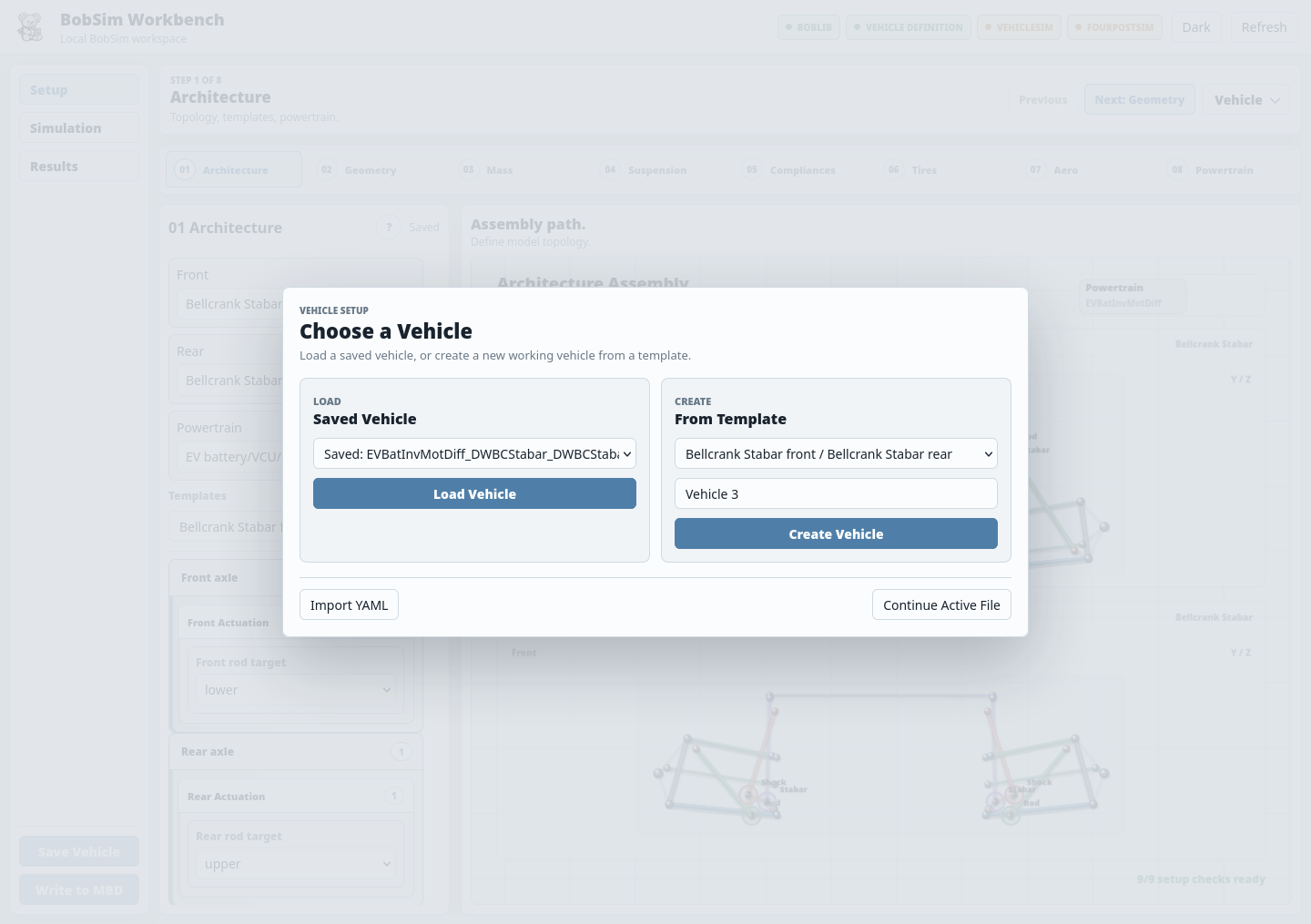
The vehicle chooser supports:
| Action | What it does |
|---|---|
Load Vehicle | Loads a saved vehicle from _5_App/user_data/config/vehicles/ |
Create Vehicle | Starts from a checked-in architecture template |
Import YAML | Imports a vehicle YAML file |
Continue Active File | Keeps the currently active vehicle data |
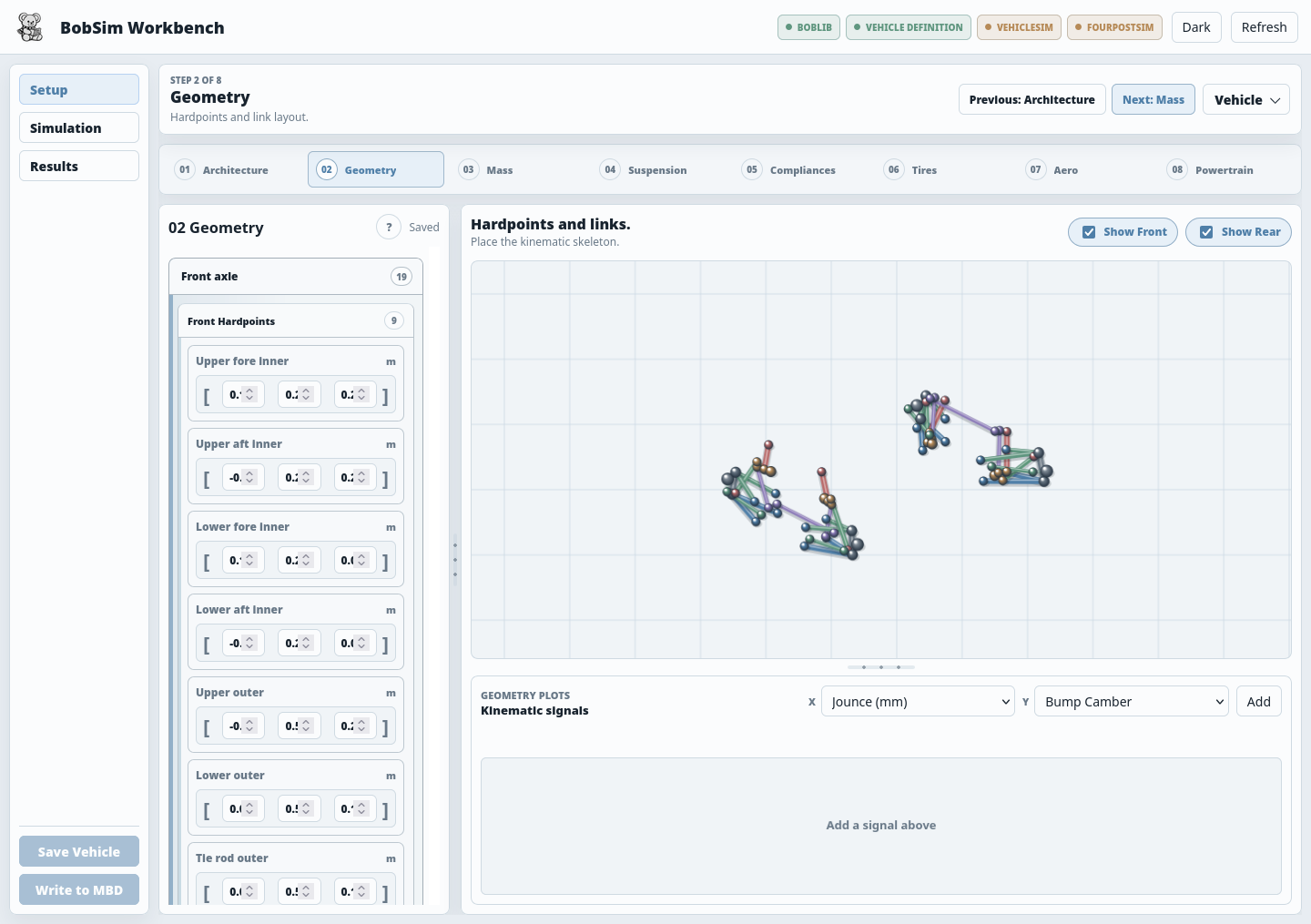
The setup steps expose editable vehicle data while the preview shows the current vehicle shape, hardpoints, mass placement, suspension behavior, tire data, aero maps, and powertrain layout. Use Next and Previous for the guided path, or jump directly with the parameter tabs.
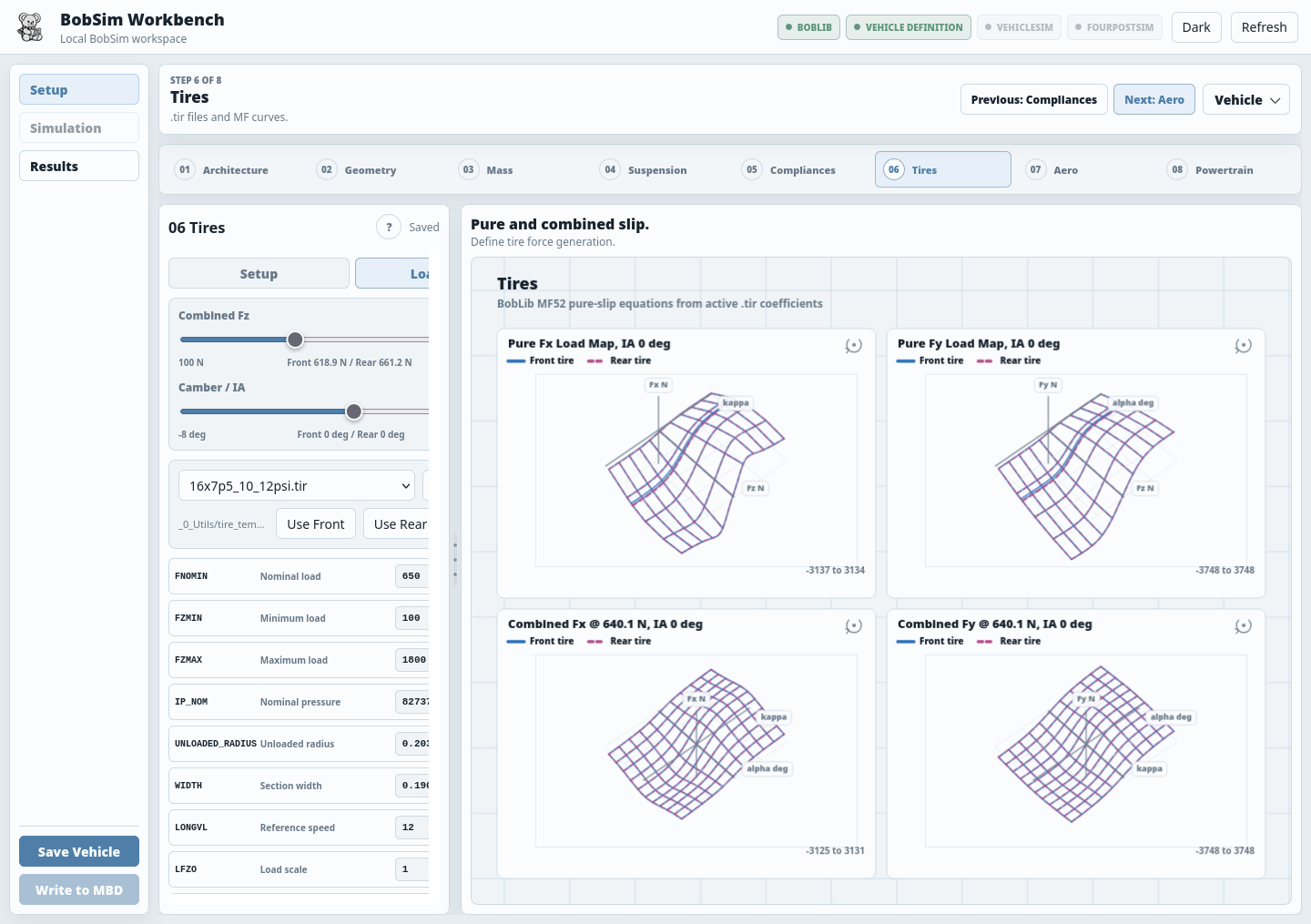
The Tires step has its own preview mode. Use the Setup tab for tire assignment and the Load maps tab to inspect the live pure/combined tire force surfaces.
When edits are ready:
Save Vehicle -> Write to MBD -> SimulationWrite to MBD generates the Modelica vehicle definition used by StandardSim. The top status strip shows whether BobLib is initialized, the vehicle definition is current, and the VehicleSim and FourPostSim builds are ready.
The released desktop app stores generated vehicles, builds, configs, and results in the per-user BobSim runtime directory instead of inside the downloaded executable. Source checkouts use the repository working directory.
Simulation View
Use Simulation to run StandardSim workflows against the active vehicle definition.
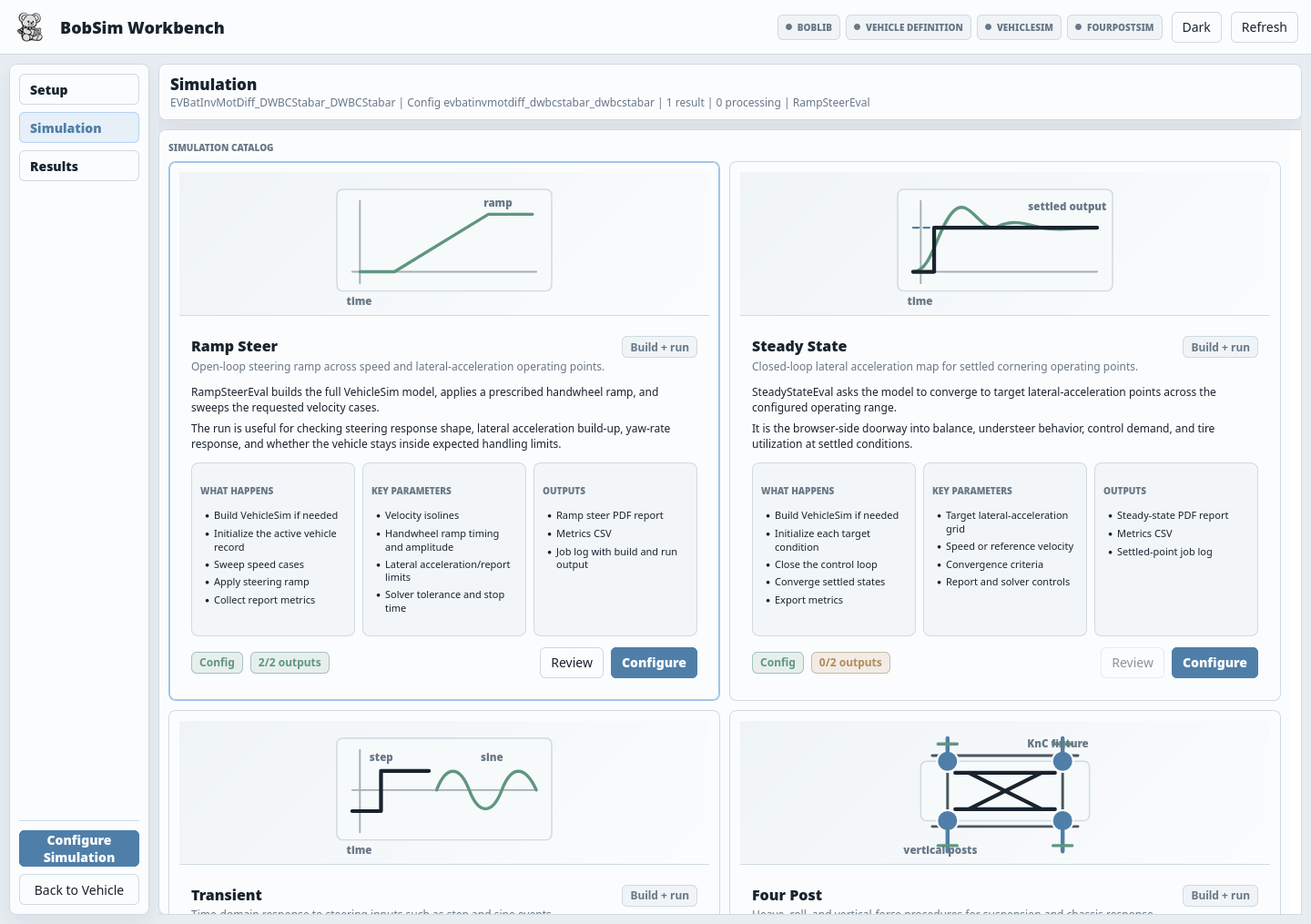
| Card | Use it for | Main output |
|---|---|---|
Ramp Steer | Open-loop steering ramp response | PDF report and metrics CSV |
Steady State | Settled lateral-acceleration operating points | PDF report and metrics CSV |
Transient | Step steer and sine response | PDF report and metrics CSV |
Four Post | Heave, roll, and vertical-force suspension procedures | PDF report and metrics CSV |
Each card has:
Configurefor editable run inputs and saved run configsBuild + RunorRunfor launching the workflowRun Logfor active and recent job outputReviewwhen registered outputs exist
If you change a run config in the modal, click Apply Edits before running. Use Save Config when the same run setup should be reused later.
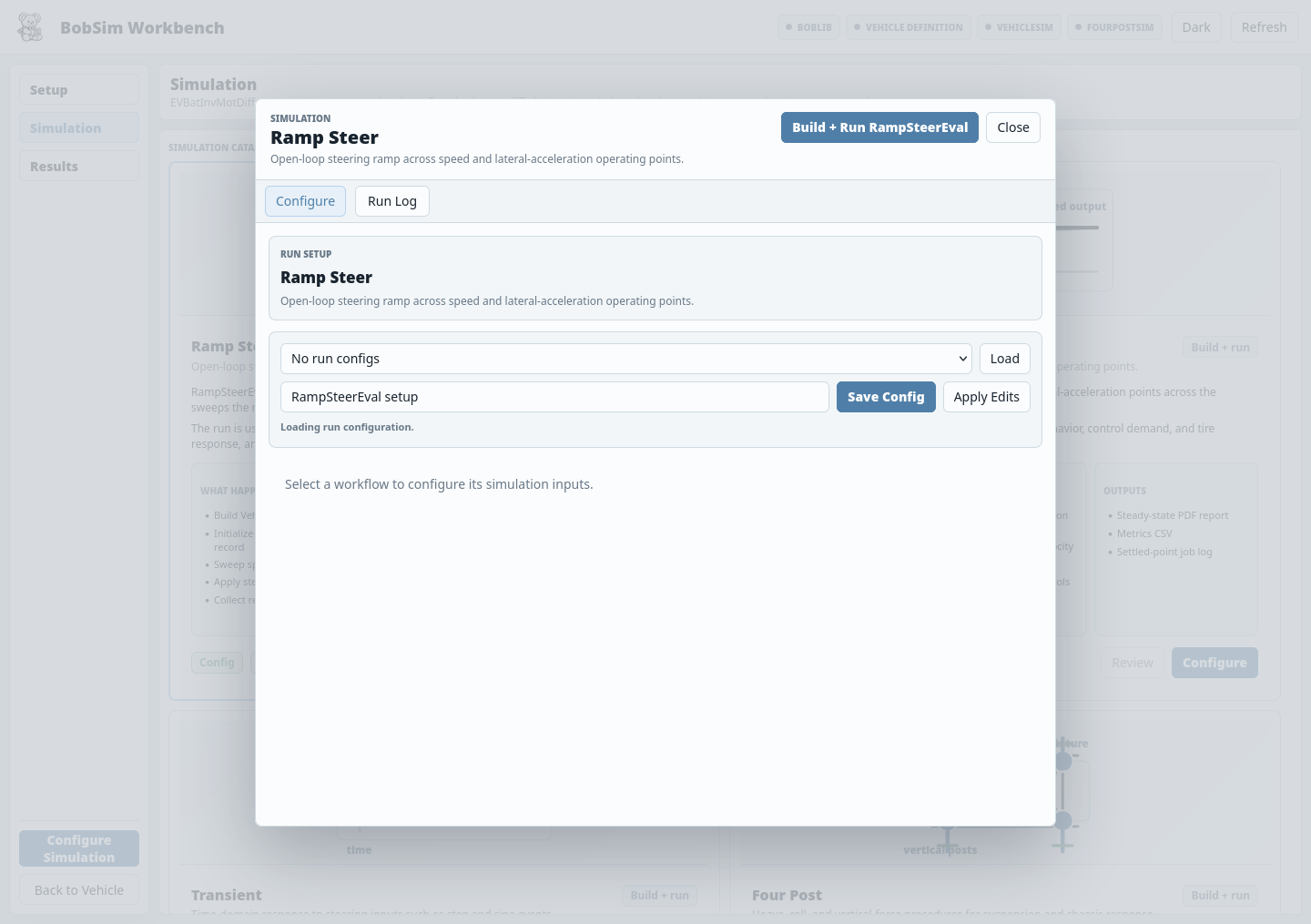
Simulation requires a verified OpenModelica toolchain. With make app the app uses the image's OpenModelica and there is nothing to set. The desktop release and make app RUN= need a local install. BobSim auto-detects common installs and lets you manually select the omc executable plus the OpenModelica library directory when needed. The usual user library directories are %APPDATA%\.openmodelica\libraries on Windows and ~/.openmodelica/libraries on macOS/Linux.
Archive View
Use Archive after a run, or click Review from the Simulation workflow card.
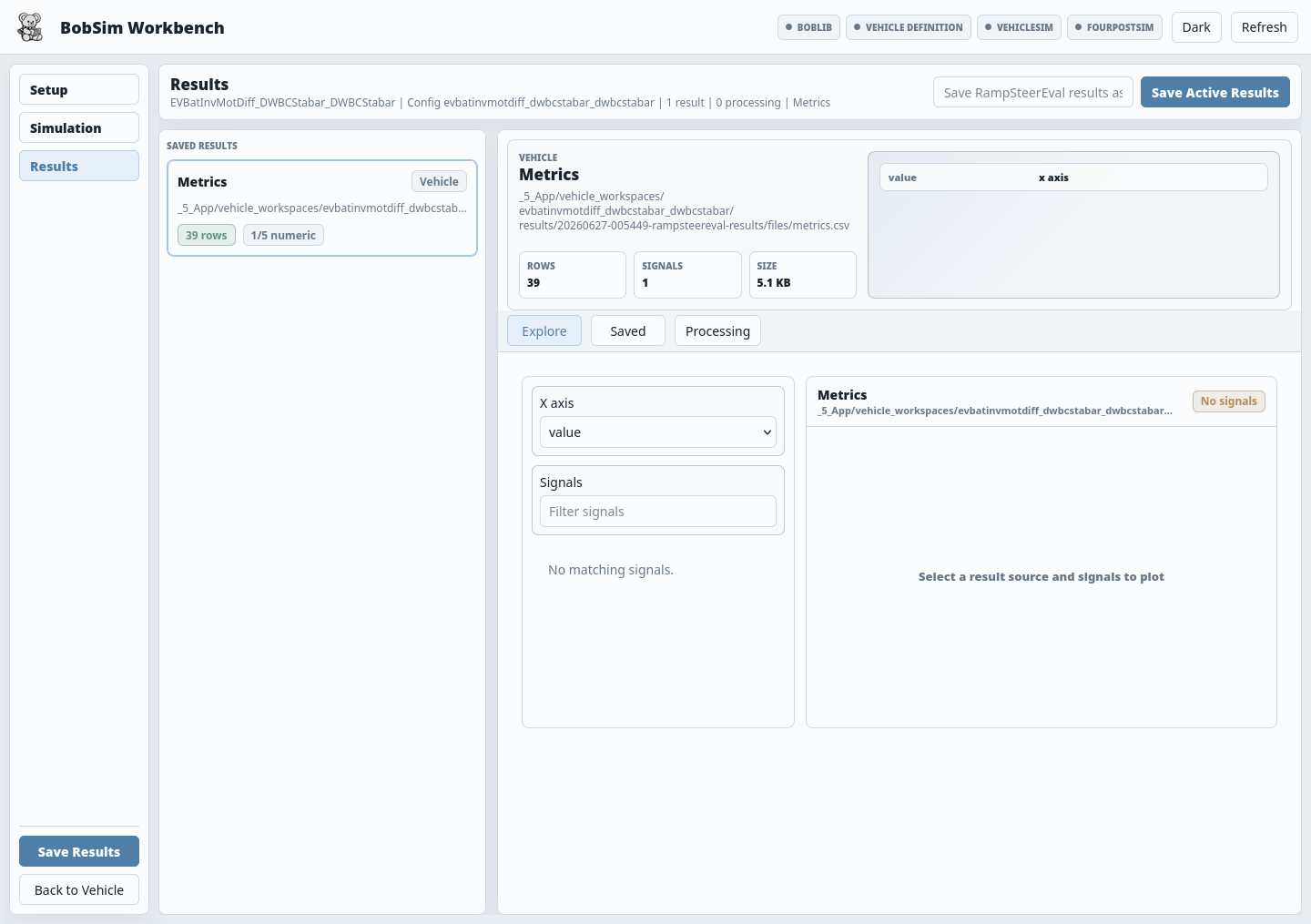
Each successful Simulation workflow creates a local run package. Download:
- the generated PDF report
- the metrics CSV
signals.zip, organized by runrun-description.json
The PDF includes the configured report pages. FourPostEval omits raw time-series appendix pages by default, and the retained per-run data lives in signals.zip. Saved app archive packages live under:
_5_App/user_data/results/saved/Vehicle-specific app workspaces live under:
_5_App/user_data/workspaces/vehicles/Use Delete in Archive to remove a local run from both the saved archive and the vehicle workspace mirror.
Standard app-registered outputs are under:
_3_StandardSim/generated_results/Some CLI configs and older checkouts may write equivalent public reports and metrics under:
_3_StandardSim/results/StandardSim Details
StandardSim is the main high-fidelity simulation lane. It lives under:
_3_StandardSim/Use StandardSim when a question depends on the full Modelica vehicle response: steering behavior, settled balance, transient response, suspension heave/roll behavior, or K&C-style metrics.
The active standard studies are:
| Study | Use it for | CLI target |
|---|---|---|
| RampSteerEval | Open-loop ramp-steer handling response | make standard-eval-ramp-steer |
| SteadyStateEval | Settled lateral-acceleration operating points | make standard-eval-steady-state |
| TransientEval | Step steer and continuous sine response | make standard-eval-transient |
| FourPostEval | Heave and roll suspension/chassis metrics | make standard-eval-four-post |
The app is the clearest launch surface. The make targets are the scriptable surface.
CLI Workflow
Use the CLI for batch work, Docker, automation, and CI.
Run the complete standard baseline:
make standard-eval-allFocused maneuver work:
make standard-build
make standard-eval-ramp-steer
make standard-eval-steady-state
make standard-eval-transient
Focused four-post work:
make standard-build-four-post
make standard-eval-four-post
The run targets depend on the matching build targets, so they rebuild missing executables automatically.
EnvelopeSim
EnvelopeSim is an optional reduced-order lane for common envelope maps. It is a separate implementation of calculations such as GGV and YMD maps, which are used widely in vehicle dynamics work.
Run:
make envelope-ggv
make envelope-ymd
or:
make envelope-allUse these outputs for quick plausibility checks, tire/aero/mass assumption reviews, and limit-trend inspection. Use StandardSim when the question depends on multibody transient behavior.
OptSim
OptSim is the sensitivity and response-surface lane. It lives under:
_4_OptSim/Run:
make opt-standard
make opt-envelope
make opt-refined
Use opt-standard for StandardSim pre-screen sensitivities, opt-envelope for EnvelopeSim sensitivities, and opt-refined for refined StandardSim response surfaces.
Debugging Runs
If a simulation fails in the app:
- Open the workflow modal.
- Check
Run Log. - Confirm the top status strip is green enough for the workflow you are running.
- Outside Docker, confirm the OpenModelica toolchain selector shows a verified
omcand library directory. - Set
execution.cleanup: falsein the run config if you need raw artifacts. - Rerun and inspect the retained run directory.
If a simulation fails from the CLI:
- Confirm the relevant build target completed.
- Set
execution.cleanup: falsein the workflow config. - Rerun the workflow.
- Inspect the retained run directory under the build tree.
- Check
overrides.txt,run.log, and the result CSV.
The shared runner deletes per-case directories by default after signal extraction, so disable cleanup before investigating raw artifacts.
Related Pages
- BobSim App for a tour of Setup, Simulation, and Archive
- BobDyn/BobSim overview for repository structure and target language
- StandardSim for the standard high-fidelity evaluations
- Configuration for YAML sections and build settings
- Archive for artifact locations and preservation practices
- BobDyn/BobLib use guide for Modelica model structure and regression checks